
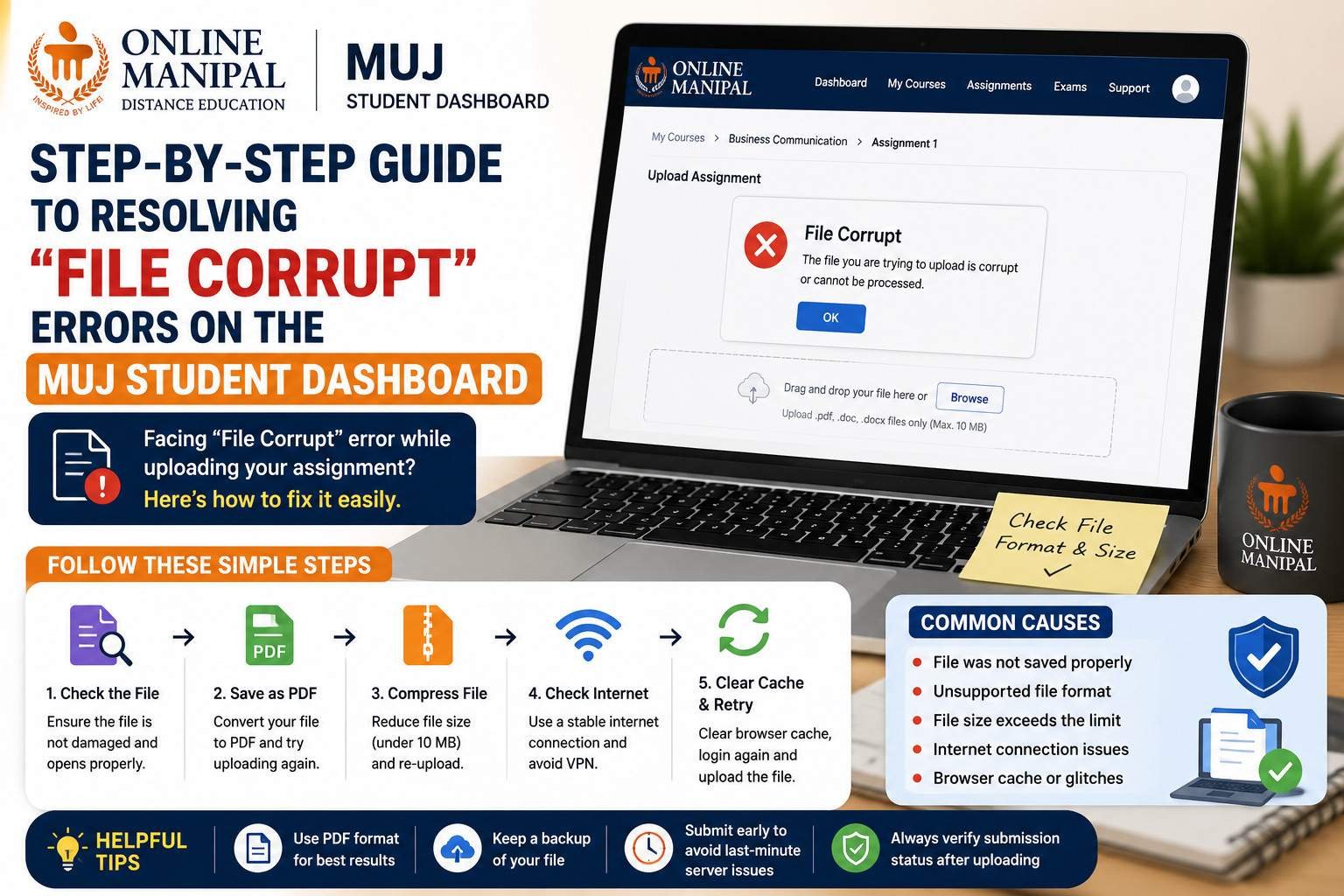
Receiving a “File Corrupt” error while uploading assignments on the Manipal University Jaipur (MUJ) Student Dashboard can be frustrating, especially when your submission deadline is approaching. This error usually appears when the Learning Management System (LMS) cannot read or verify the uploaded file.
What Does the “File Corrupt” Error Mean?
The “File Corrupt” message indicates that the MUJ Student Dashboard is unable to process the uploaded document because it appears damaged, incomplete, or incompatible with the system.
This does not always mean your assignment is actually corrupted. In many cases, the issue is related to the file format, export process, upload interruption, or browser-related problems.
Common Reasons for the “File Corrupt” Error
1. Incomplete PDF Export
If your assignment was not exported correctly from Microsoft Word or Google Docs, the resulting PDF may contain missing data that prevents the LMS from reading it properly.
2. Unsupported File Format
The MUJ Student Dashboard typically accepts only approved file formats such as:
- DOC
- DOCX
Uploading ZIP files, scanned image folders, or unsupported formats may trigger a file corruption error.
3. Interrupted File Upload
An unstable internet connection can interrupt the upload process, resulting in an incomplete file being stored on the server.
4. Damaged PDF File
If the PDF itself is damaged due to software issues or improper file conversion, the LMS may reject it during verification.
5. Large File Size
Very large documents containing numerous high-resolution images can fail during upload and may display a corruption error.
6. Browser Cache Problems
Outdated browser cache and cookies can interfere with the upload process, causing the dashboard to incorrectly identify a valid file as corrupted.
Step-by-Step Guide to Fix the “File Corrupt” Error
Step 1: Open the File Before Uploading
Before uploading, open your assignment on your computer.
If the document opens without any warning or missing pages, the file is likely intact.
Step 2: Save the File Again
Open the assignment in Microsoft Word or your preferred editor and save it again.
If submitting a PDF, export a fresh PDF instead of using the previous version.
Step 3: Convert the File to PDF Again
If the existing PDF causes errors, regenerate it using the “Save As PDF” or “Export as PDF” option instead of third-party converters.
Step 4: Check the File Size
Ensure the assignment is within the upload size limit specified by the MUJ Student Dashboard.
If necessary:
- Compress the PDF.
- Reduce image sizes.
- Remove unnecessary graphics.
Step 5: Rename the File
Use a simple file name such as:
BBA_Marketing_Assignment.pdfAvoid file names containing special characters like:
BBA#Assignment(Final)%2026.pdfStep 6: Try Another Browser
The MUJ Student Dashboard performs best on updated browsers like:
- Google Chrome
- Microsoft Edge
- Mozilla Firefox
If the error persists, switch to another browser and upload the assignment again.
Step 7: Clear Browser Cache
Delete your browser cache and cookies before attempting another upload.
This helps eliminate cached upload errors.
Step 8: Use a Stable Internet Connection
A reliable internet connection ensures the file uploads completely.
If your Wi-Fi connection is unstable, switch to another network or use a mobile hotspot.
Step 9: Upload the Assignment Again
After completing the previous steps, upload the fresh file and wait until the upload progress reaches 100% before clicking the final submit button.
What If the Error Still Appears?
If you continue receiving the “File Corrupt” error, collect the following information before contacting support:
- Student ID
- Course name
- Subject name
- Assignment number
- Screenshot of the error message
- Screenshot showing the file size and file format
Providing complete details allows the support team to investigate the issue more quickly.
Tips to Avoid File Corruption Errors
- Always create a fresh PDF before uploading.
- Use the latest version of Microsoft Word or PDF software.
- Keep file names simple and professional.
- Avoid editing the PDF after it has been finalized.
- Upload assignments well before the submission deadline.
- Verify that the uploaded file opens correctly after saving.
To reduce the chances of upload failures, compress large PDFs, review the final document before submission, and ensure the assignment has been uploaded successfully on the MUJ Student Dashboard.
The “File Corrupt” error on the MUJ Student Dashboard is usually caused by damaged PDF files, unsupported formats, interrupted uploads, oversized documents, or browser-related issues. Fortunately, most cases can be resolved by creating a fresh PDF, reducing the file size, using a supported browser, and uploading the assignment again.
If you’re submitting MUJ BBA Assignments, always verify your file before uploading and avoid waiting until the last minute. A few extra minutes spent checking your document can save you from unnecessary submission issues and help ensure your assignment reaches the evaluator successfully. For additional academic support and high-quality MUJ Solved Assignments, you can also refer to assignment4u.in as a trusted learning resource.
Add a Comment