
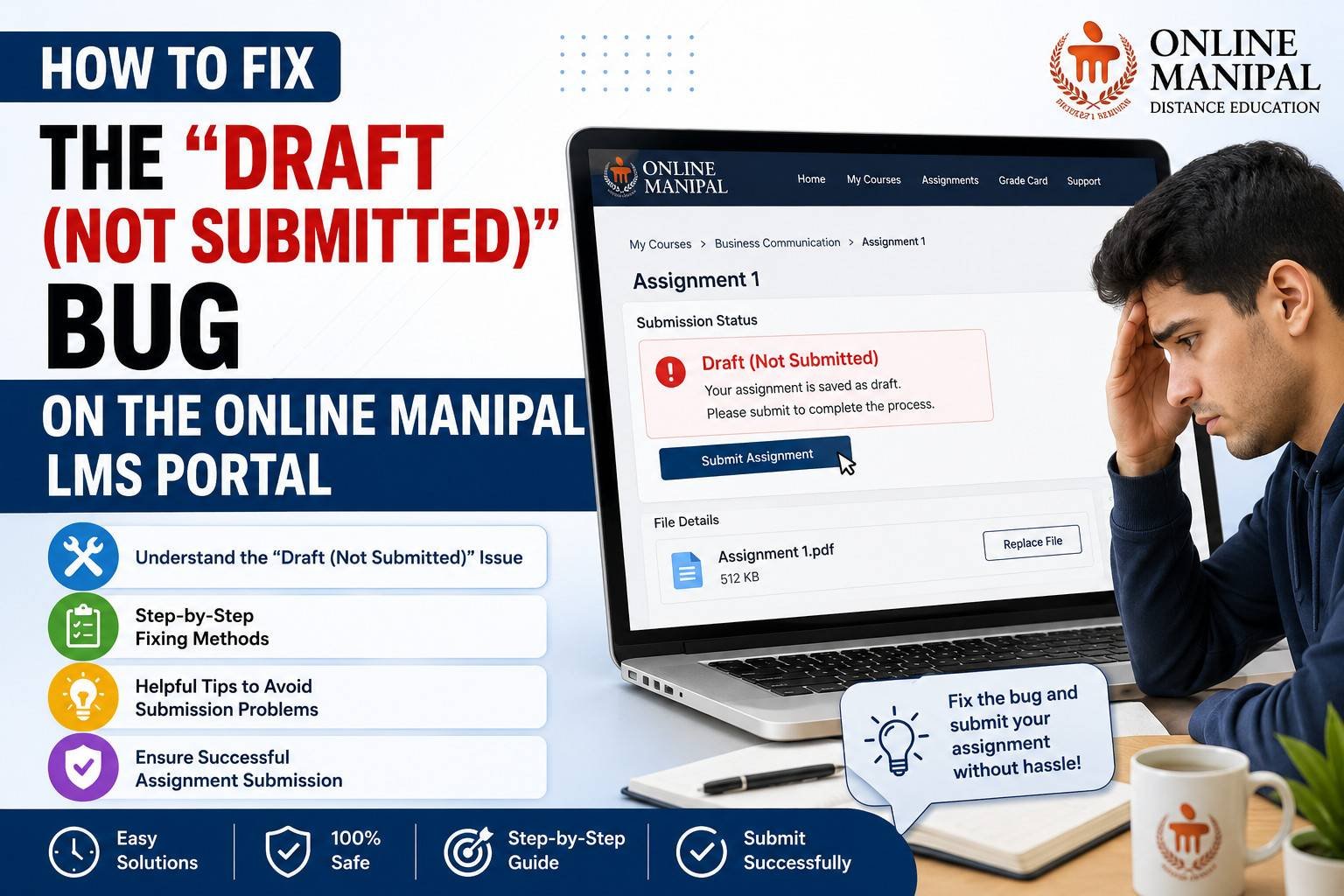
If you’ve spent hours completing your assignment only to discover that the status still shows “Draft (Not Submitted)” on the Online Manipal LMS portal, you’re not alone. Many students enrolled in Manipal University Jaipur (MUJ) online programs, especially MBA learners, have experienced this frustrating issue.
The good news is that, in most cases, the problem can be resolved with a few simple troubleshooting steps. This guide explains why the error occurs, how to fix it, and what to do if your assignment still isn’t getting submitted.
If you’re working on MUJ MBA Assignments, following these tips can help you avoid missing submission deadlines due to technical glitches.
What Does “Draft (Not Submitted)” Mean?
The “Draft (Not Submitted)” status indicates that your assignment has been uploaded or saved as a draft, but the Learning Management System (LMS) has not successfully recorded it as a final submission.
This means your evaluator cannot access your assignment until the submission process is completed successfully.
Why Does the Draft Status Appear?
Several factors can cause this issue.
1. File Size Exceeds LMS Limit
Online Manipal LMS has upload restrictions. If your PDF or Word document exceeds the maximum allowed size, the upload may appear successful but remain in draft mode.
Always compress your files before uploading.
2. Unsupported File Format
The portal generally accepts the following file formats:
- DOC
- DOCX
Avoid uploading ZIP files, RAR files, images, or Google Docs links unless specifically instructed.
3. Internet Connection Interrupted
A temporary internet disruption during uploading can prevent the final submission request from reaching the server.
Even though the file appears uploaded, it may still remain in draft status.
4. Browser Cache Issues
Old browser cache and cookies often interfere with LMS functionality.
Many students fix the problem simply by clearing browser cache, logging in again, and uploading the assignment once more.
5. Session Timeout
If you keep the LMS open for a long period without activity, your session may expire.
When you finally click the Submit button, the system may silently reject the request.
6. LMS Server Load
During assignment deadlines, thousands of students upload files simultaneously.
Heavy server traffic can temporarily delay submissions, causing assignments to remain in draft status.
Step-by-Step Guide to Fix “Draft (Not Submitted)”
Step 1: Refresh the LMS
Log out of your Online Manipal account.
Wait for two to three minutes before logging in again and checking whether the assignment status has changed.
Step 2: Re-upload the Assignment
Delete the draft version if the option is available.
Upload a fresh copy of your assignment and wait until the upload reaches 100% before clicking the final Submit button.
Many students accidentally stop after uploading the document without completing the final submission step.
Step 3: Verify File Size
Before uploading your assignment:
- Keep the PDF below the LMS upload limit.
- Compress large documents.
- Remove unnecessary images if possible.
Smaller files generally upload more reliably.
Step 4: Rename the File Properly
Avoid using special characters such as #, %, @, &, +, or brackets in your file name.
Use a simple file name like:
MBA_Marketing_Assignment.pdfInstead of:
MBA#Assignment(Final)%2026.pdfStep 5: Use a Supported Browser
Online Manipal LMS performs best on modern browsers such as:
- Google Chrome
- Microsoft Edge
- Mozilla Firefox
Avoid using outdated browsers that may cause compatibility issues.
Step 6: Clear Cache and Cookies
Clear your browser’s:
- Cache
- Cookies
- Temporary files
Restart the browser before logging into the LMS again.
Step 7: Try Incognito Mode
Open the Online Manipal LMS using a private browsing window:
- Chrome Incognito
- Edge InPrivate
- Firefox Private Window
This eliminates most browser extension conflicts.
Step 8: Disable VPN
If you are using a VPN, disable it before uploading your assignment.
VPN connections can sometimes interrupt secure LMS authentication.
Step 9: Check Internet Stability
A slow or unstable internet connection may interrupt uploads.
If possible, switch to another Wi-Fi network or use a mobile hotspot before trying again.
What If the Assignment Still Shows Draft?
If none of the above solutions work, take screenshots of the following:
- Draft status
- Uploaded assignment
- Date and time of upload
- Assignment page
Then contact Online Manipal support with:
- Student ID
- Course name
- Subject
- Assignment number
- Browser used
- Device used
The support team can verify server logs and assist with your submission.
Tips to Avoid Submission Problems
- Upload assignments before the last day.
- Keep your file size small.
- Save the final PDF on your computer.
- Double-check the submission status.
- Refresh the page after submitting.
- Take a screenshot showing the Submitted status.
Following these practices can help you avoid unnecessary stress before assignment deadlines.
How This Affects MUJ MBA Assignments
Students pursuing MUJ MBA Assignments often submit multiple assignments within the same evaluation cycle. Waiting until the final hours significantly increases the chances of encountering LMS server congestion and upload failures.
To minimize technical issues:
- Complete assignments well before the deadline.
- Upload them at least 24 to 48 hours early.
- Verify that the status changes from Draft to Submitted.
- Keep backup copies of every assignment.
Proper submission is just as important as completing the assignment itself.
The “Draft (Not Submitted)” issue on the Online Manipal LMS portal is usually caused by incomplete submission, browser cache problems, unsupported file formats, large file sizes, unstable internet connections, or temporary server delays. In most cases, the issue can be resolved by re-uploading the assignment, clearing browser cache, using a supported browser, and confirming that the status changes to Submitted.
For students working on MUJ MBA Assignments, submitting assignments well before the deadline, verifying the final submission status, and keeping proof of submission are simple yet effective ways to avoid unnecessary complications and ensure that your work reaches the evaluator successfully.
Add a Comment